LinkedIn Banner Specifications
Recommended Size
1128 x 191 px
Max File Size
8 MB
Formats
PNG or JPG
Aspect Ratio
~6:1 (wide)
Note: LinkedIn crops the banner on mobile, cutting the top and bottom. Keep critical elements (logo text, tagline) centered vertically. The images below are generated at 16:9 — crop to 1128x191 in Canva or Photoshop for optimal fit. The safe zone is the center 60% of the image height.
Banner Concepts
Concept A: Interactive Classroom
RecommendedVibrant, colorful illustration showing diverse children engaged in interactive learning. Warm, inviting feel that instantly communicates "fun + education." Best for establishing Teachertainment's brand personality on LinkedIn.
Concept B: Premium Tech-Education
ModernSleek navy-to-teal gradient with abstract learning icons (musical notes, lightbulbs, books, stars) in white outlines. Corporate yet creative energy. Best if Teachertainment wants to project a more professional, tech-forward presence on LinkedIn.

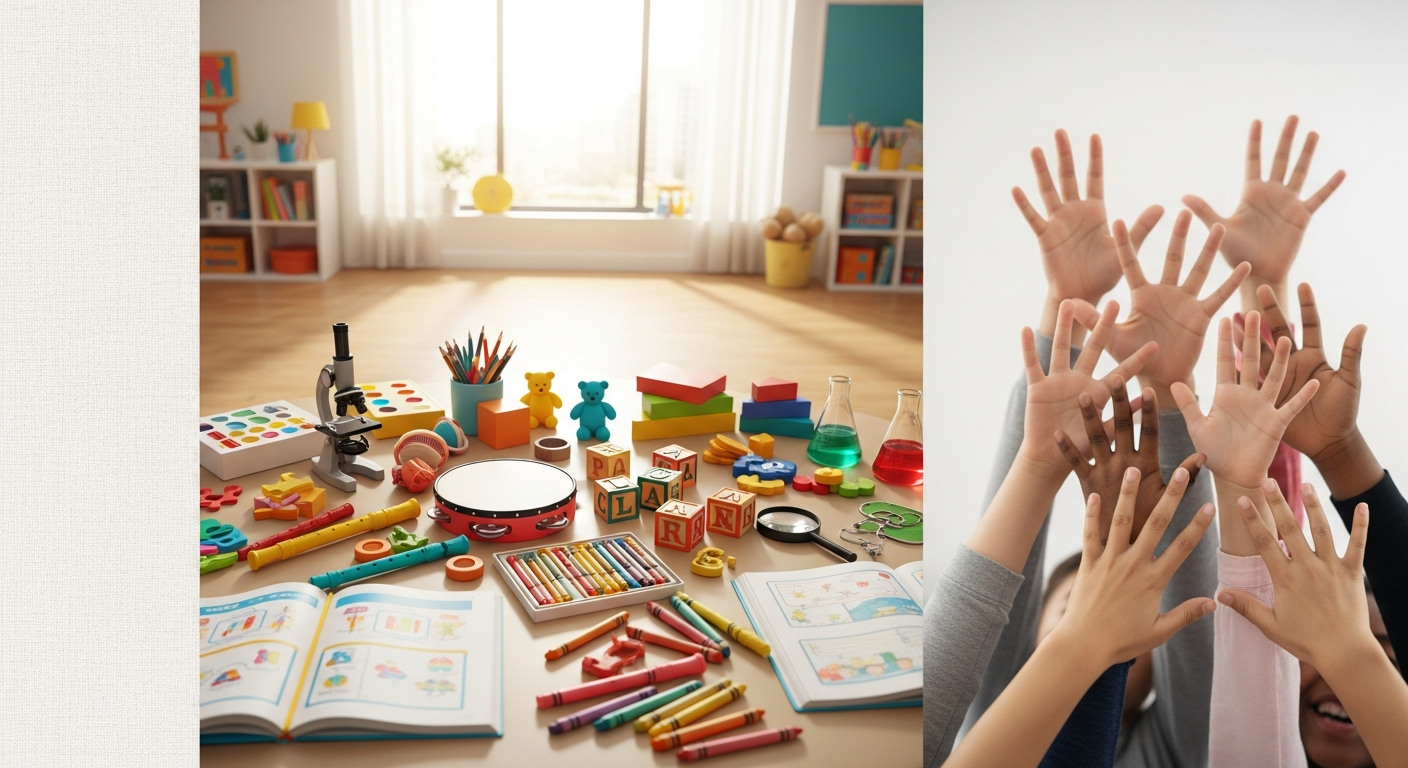
Concept C: Warm Flat-Lay Classroom
WarmWarm, inviting split design with educational materials in a flat-lay style — workbooks, musical instruments, art supplies, science kits. Blends cream tones with vibrant accents. Feels approachable, creative, and hands-on. Great for targeting school administrators and parents.
Implementation Guide
- Choose your concept — Pick the banner that best fits Teachertainment's LinkedIn brand strategy. Concept A (recommended) for warmth and personality. Concept B for corporate/tech feel. Concept C for creative/hands-on vibe.
- Crop to LinkedIn dimensions — Open in Canva (free) or Photoshop. Resize canvas to 1128 x 191 px. Position the image so the most important visual elements are centered vertically within the safe zone.
- Add logo overlay (optional) — Place the Teachertainment logo on the left side of the banner. Keep it within the left 30% to avoid overlap with the company profile photo on LinkedIn.
- Add tagline (optional) — Consider adding "Making Learning Fun Through Music, Games & Interactive Activities" or a shorter tagline in clean, readable text. Position center-right.
- Upload to LinkedIn — Go to LinkedIn Company Page > Edit > Click the banner area > Upload your cropped image. Preview on both desktop and mobile before saving.
Pro Tip: LinkedIn company page profile photos (logo) appear in the bottom-left corner of the banner. Leave that area clear of important visual elements to avoid overlap.